FS Czech Portal in your AI assistant
Ask Claude or ChatGPT about your team's deadlines, documents, SES and the event — answered from the portal itself.
For members of a team registered on the portal, about their own team and the current season. It costs nothing on our side.
- Deadlines — what is due, what you have handed in and what is still missing.
- Documents — how your uploads were reviewed, the reviewer's comments and which judges' feedback files are ready.
- SES, ASES and IAD — the overview and any section: your inputs, the portal's checks and the scrutineers' comments.
- At the event — the team schedule, where you stand in technical inspection, your results and penalties.
- Your team and announcements — members with their roles, and what the organisers sent you.
FS Czech is listed in ChatGPT's plugin directory — no server address to copy.
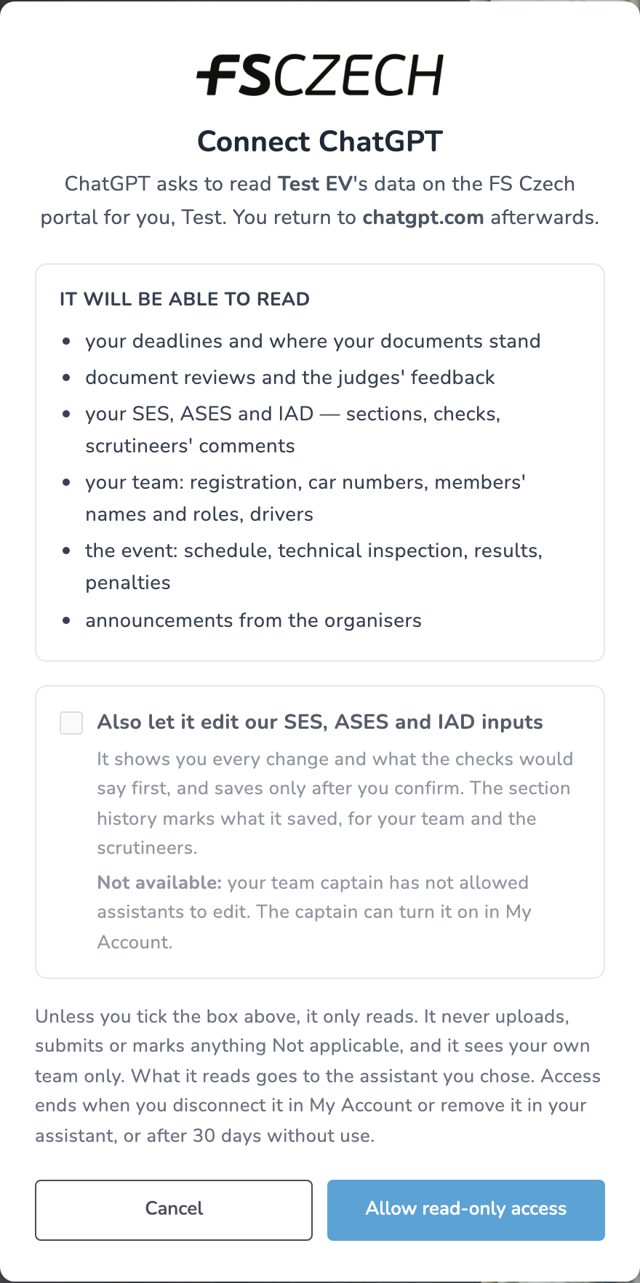
Not in the list? A workspace's admin may have to allow it first. Or add the portal as your own server: Plugins → Add → Add custom MCP server
(needs Developer mode and a paid plan), Authentication OAuth, address https://portal.fsczech.cz/mcp/team.
https://portal.fsczech.cz/mcp/team
claude mcp add --transport http fsczech https://portal.fsczech.cz/mcp/teamOff unless your team turns it on. Reading always works.
- Your team captain allows it for the team in My Account → Connected AI assistants.
- You allow it for your own connection there (Allow editing), or in the box on the sign-in page.
- Every change is shown to you first — each value from → to and what the checks would say — and saved only after you confirm. The section history shows it was saved through your assistant, for your team and the scrutineers.
- Uploading documents and photos, submitting, Not applicable and explanations of failed checks.
- Sending a review round back and managing your team.
- Other teams' data and anything only the scrutineers see — your assistant never reaches more than you can open on the portal.
- What your assistant reads goes to the AI provider you chose, under your own account with them and their terms — check its data and training settings.
- The portal records which tool was used and when, never the questions or answers, and keeps that record for 90 days.
- Disconnect at any time in My Account → Connected AI assistants; access ends at once. Removing the app in Claude or ChatGPT does not remove the connection on the portal.
More in the Event and Portal Privacy Notice and the terms of use. Questions or problems: info@fsczech.cz.
